> For the complete documentation index, see [llms.txt](https://docs.klink.cloud/llms.txt). Markdown versions of documentation pages are available by appending `.md` to page URLs; this page is available as [Markdown](https://docs.klink.cloud/how-to-use/call/inbound-call-handling/how-to-enable-inbound-call-notifications.md).
# How to Enable Inbound Call Notifications
Enable browser notifications to receive instant alerts for inbound calls, even when klink.cloud is running in the background
### How It Works
1. Enable notifications when prompted on klink.cloud dialpad
2. Inbound calls trigger desktop notifications with sound
3. Click the notification to open klink.cloud and answer the call
4. Works even when browser is minimized or tab is in background
***
### Setup Instructions
#### Step 1: Enable Notifications in klink.cloud
1. Open klink.cloud dialpad
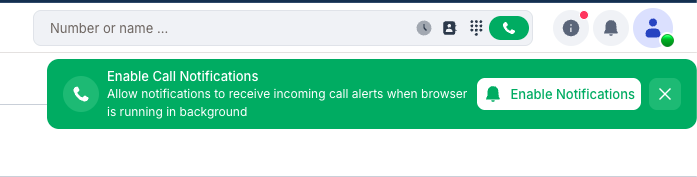
2. Click **"Enable Notifications"** on the green banner
3. Click **"Allow"** in Chrome's popup dialog
#### Step 2: Configure Chrome Permissions
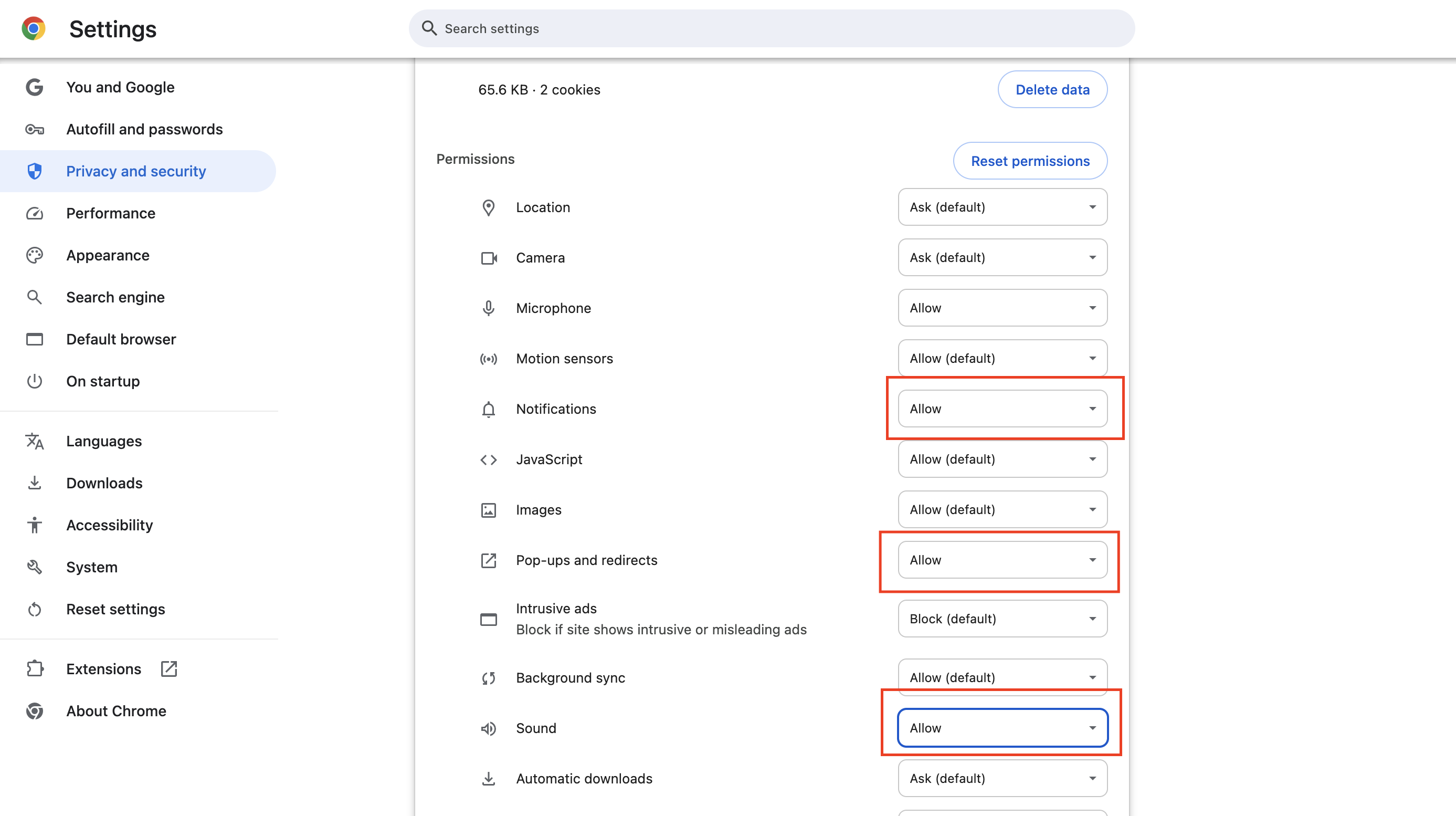
1. Click the **lock icon** (🔒) in Chrome address bar (next to klink.cloud URL)
2. Click **"Site settings"**
3. Set these to **"Allow"**:
* **Notifications** → Allow
* **Pop-ups and redirects** → Allow
* **Sound** → Allow
4. Refresh the page
✅ **Done!** You're all set to receive inbound call notifications.
***
### Troubleshooting
**Not receiving inbound call notifications?**
* Check that all three permissions above are set to "Allow"
* Ensure computer volume is not muted
* Refresh the browser page
**Need help?** Contact