> For the complete documentation index, see [llms.txt](https://docs.klink.cloud/llms.txt). Markdown versions of documentation pages are available by appending `.md` to page URLs; this page is available as [Markdown](https://docs.klink.cloud/getting-started/setup-channels/whatsapp/whatsapp-mobile-qr-scan.md).
# WhatsApp Mobile (QR Scan)
This tutorial will guide you how to connect your Whatsapp Mobile channel.
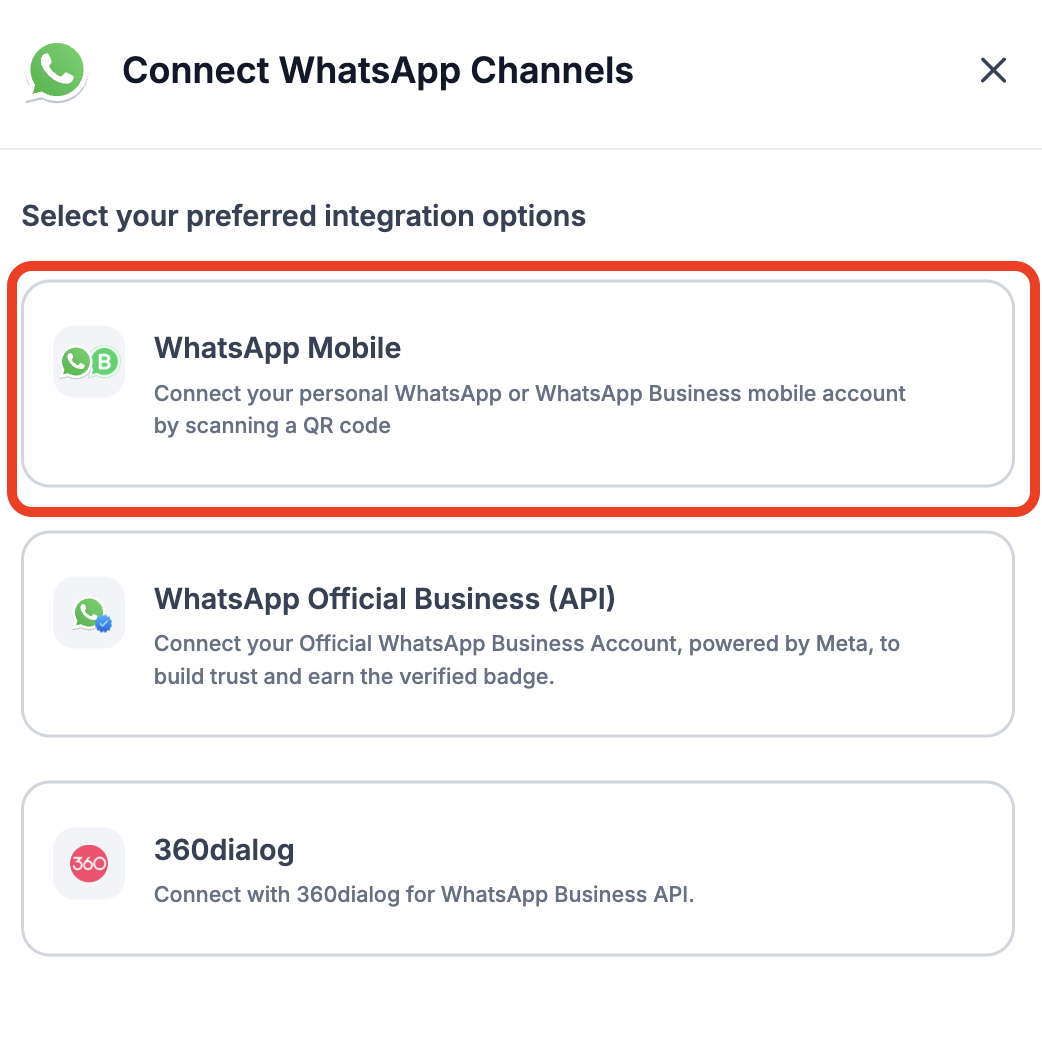
#### **Step 1 - Go to Setting -> Message integration -> Available Channels. Click "Whatsapp"**
Click on the WhatsApp Mobile.
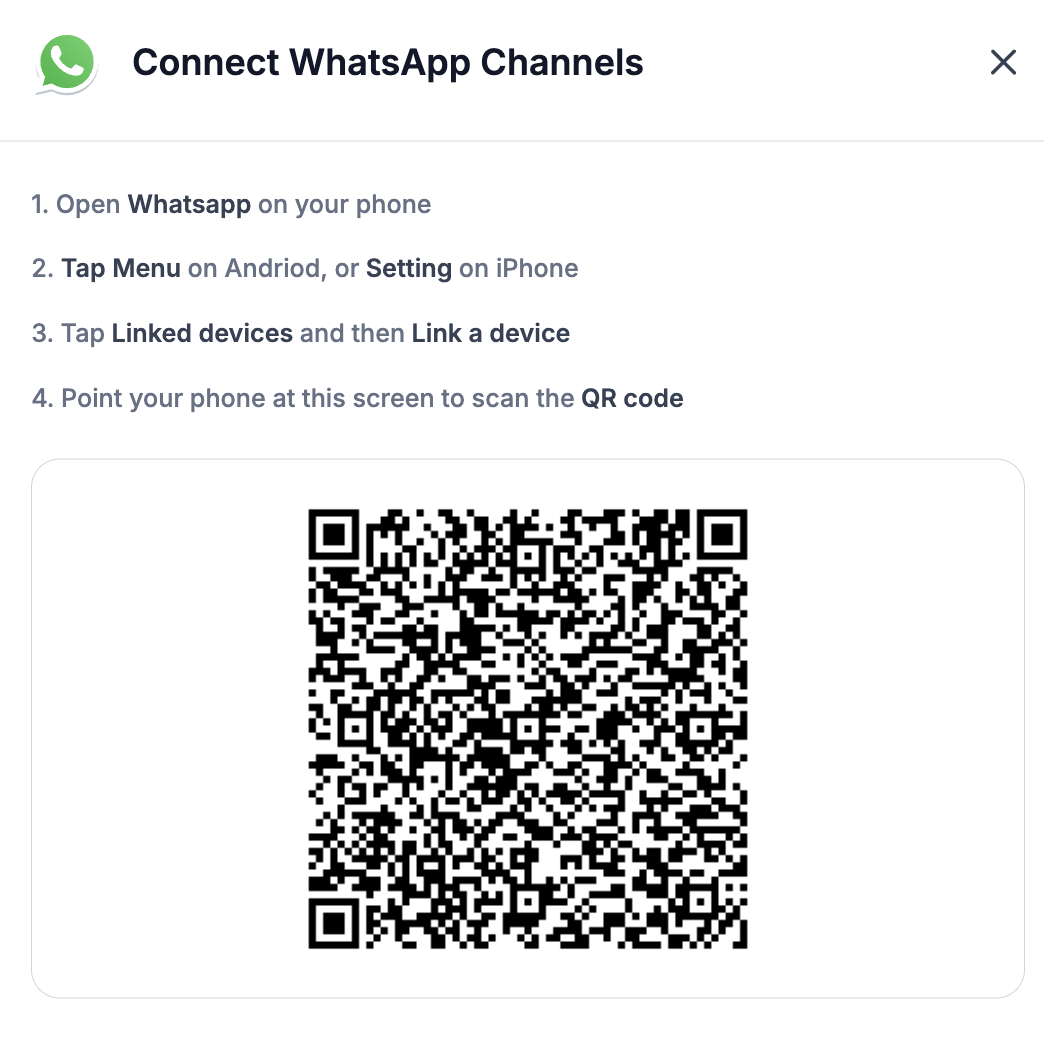
#### Step 2—Once you have selected Whatsapp Mobile, follow the instructions and Scan the QR code from your mobile device.
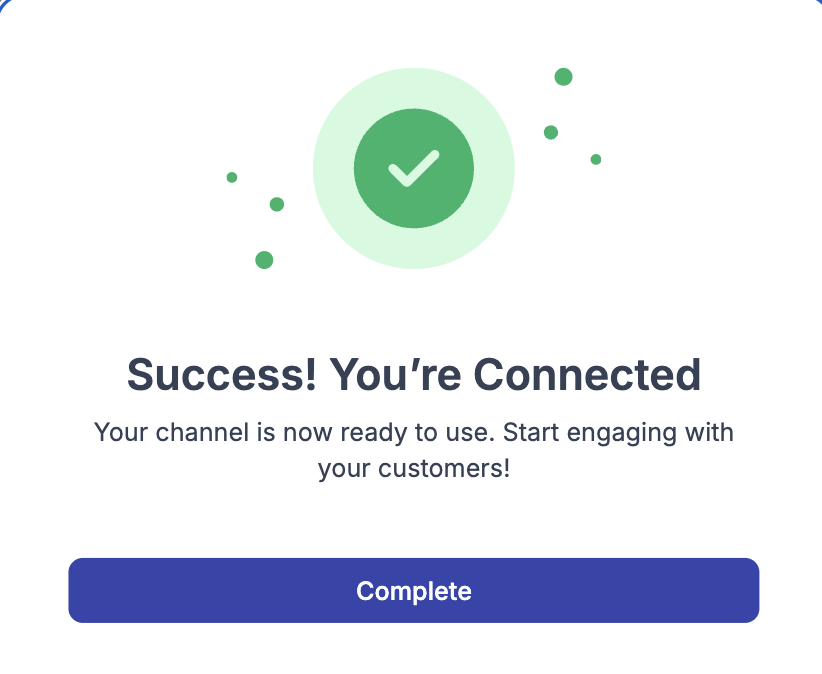
That's it! You have successfully connected your Whatsapp Account.
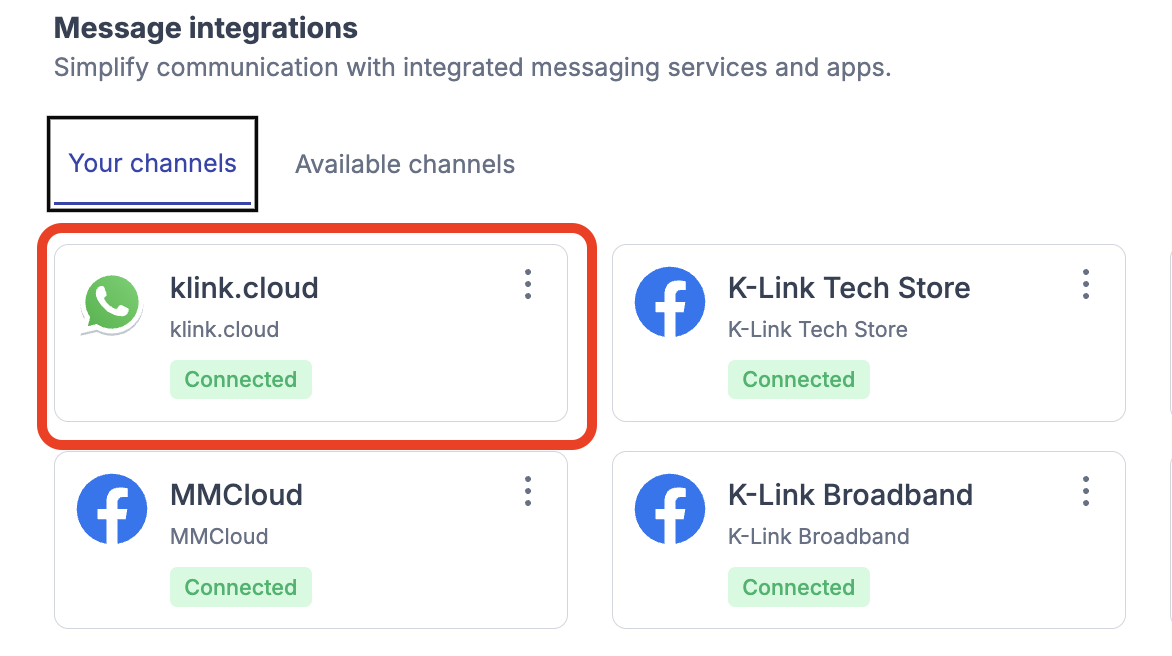
You can view your connected WhatsApp channel under **Settings > Message Integration > Your Channel**.
That's it! You've successfully connected your WhatsApp Mobile channel to Klink.Cloud. Now you can effortlessly manage all your WhatsApp messages in one place.
#### FAQ
**Q: My WhatsApp (QR Device Link Channel) is not receiving messages. What should I do?**
**A:** This usually happens when your WhatsApp device connection is no longer active.
Please follow these steps to fix the issue:
**✅ Step 1: Check WhatsApp Device Connection**
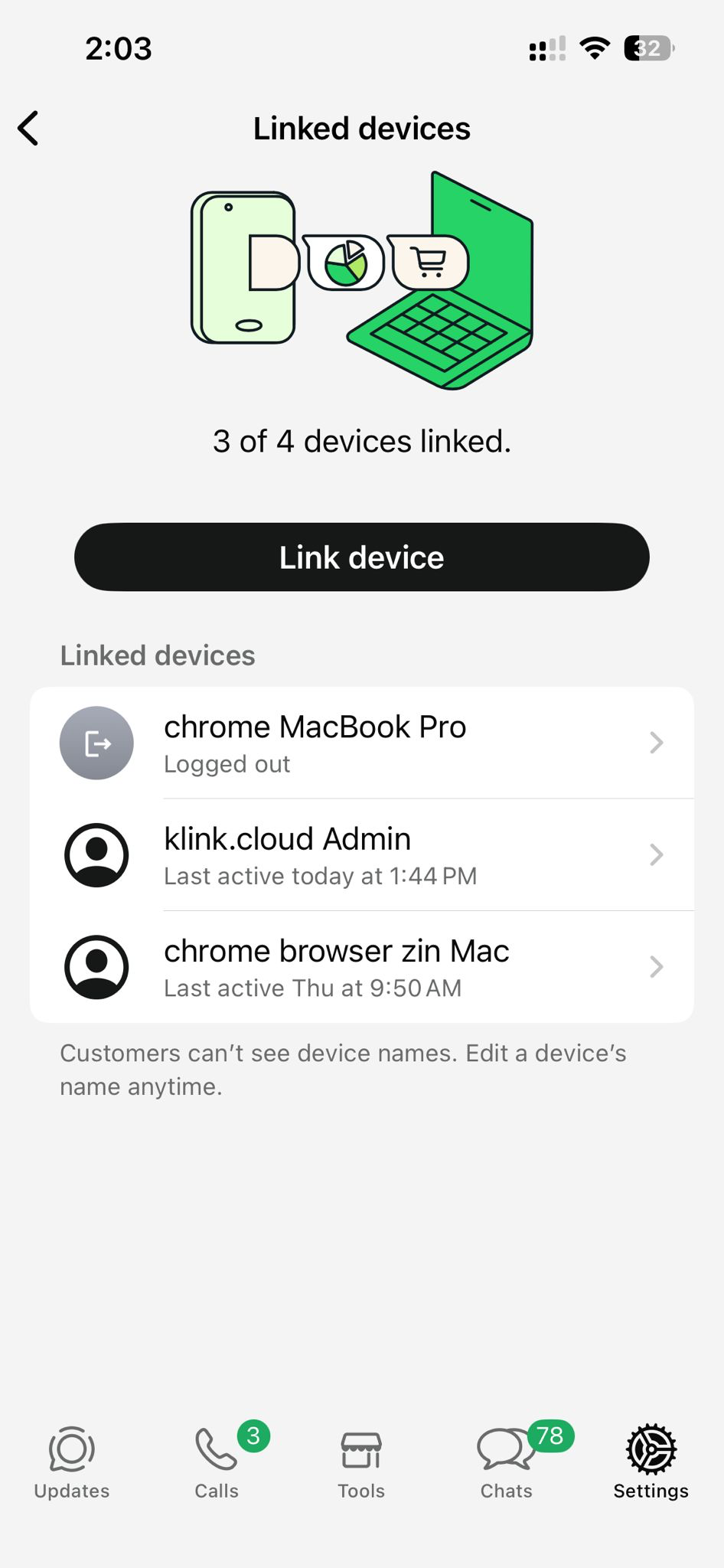
1. Open the **WhatsApp mobile app** on your phone
2. Go to **Linked Devices**
3. Check whether the device connection is still **active**
If there is **no active connection**, you will need to reconnect.
**🔄 Step 2: Reconnect WhatsApp in klink.cloud**
1. Log in to **klink.cloud**
2. Go to **Settings → Message Integration**
3. Click **Reconnect**
4. A **new QR code** will appear
5. Open WhatsApp on your phone and **scan the QR code** to link the device again
**⚠️ Important Notes**
* **Do NOT delete** the linked device from your WhatsApp mobile app
* Deleting the connection will immediately stop incoming messages
* If the connection is removed, you must reconnect using a new QR code
If the issue continues after reconnecting, please contact our support team for assistance.