> For the complete documentation index, see [llms.txt](https://docs.klink.cloud/llms.txt). Markdown versions of documentation pages are available by appending `.md` to page URLs; this page is available as [Markdown](https://docs.klink.cloud/getting-started/setup-channels/live-chat/in-app-chat-for-mobile-app.md).
# In‑App Chat for Mobile App
This guide shows how to embed the **klink.cloud** Web Chat Widget inside your iOS/Android Flutter app using `webview_flutter`.
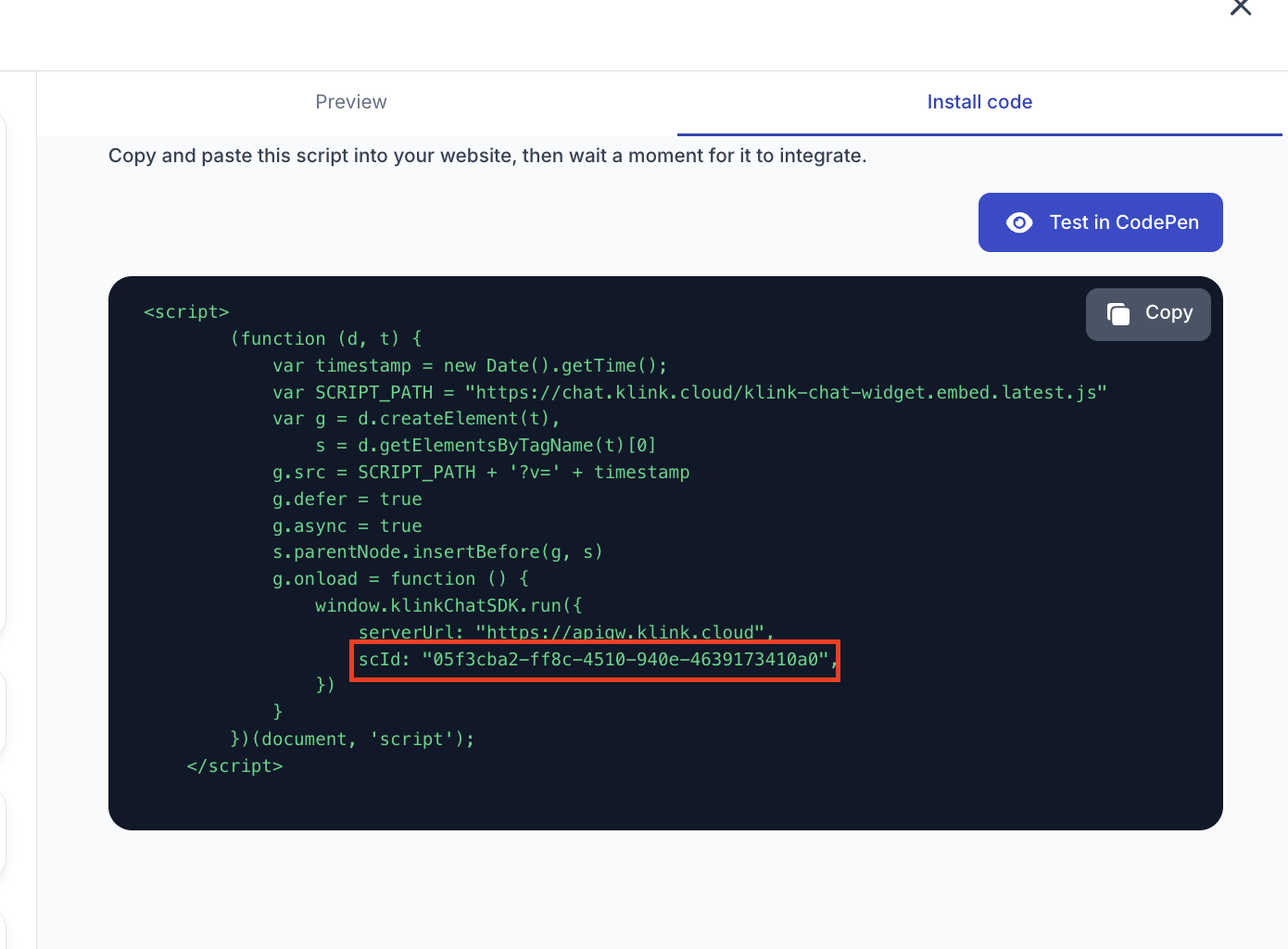
> **Replace `YOUR_SCID_HERE`** with the `scId` from **klink.cloud → Settings → Message Integration → Web Chat Widget → Install Code**.
### 1) Choose a widget URL (3 UI options)
Pick the design that fits your mobile app:
* **Show Header**\
`https://chat.klink.cloud/app/index.html?scId=YOUR_SCID_HERE&showHeader=true`
* **Hide Header**\
`https://chat.klink.cloud/app/index.html?scId=YOUR_SCID_HERE&showHeader=false`
* **Chat Bubble Widget**\
`https://chat.klink.cloud/app/index.html?scId=YOUR_SCID_HERE&view=widget`
### 2) Add dependencies
`pubspec.yaml`
```yaml
dependencies:
flutter:
sdk: flutter
webview_flutter: ^4.8.0
webview_flutter_android: ^3.16.0
webview_flutter_wkwebview: ^3.13.0
```
Run:
```
flutter pub get
```
### 3) iOS & Android minimal setup
**Android** → `android/app/src/main/AndroidManifest.xml`
```xml
```
**iOS** → `ios/Runner/Info.plist` (only if your chat needs camera/mic)
```xml
NSCameraUsageDescriptionCamera access is required to share images via chat.NSMicrophoneUsageDescriptionMicrophone access is required for voice messages.
```
### 4) Drop‑in WebView widget
Create `lib/klink_chat.dart` and paste:
```dart
import 'package:flutter/material.dart';
import 'package:webview_flutter/webview_flutter.dart';
class KlinkChat extends StatelessWidget {
const KlinkChat({super.key, required this.url});
final String url; // one of the 3 URLs above
@override
Widget build(BuildContext context) {
final controller = WebViewController()
..setJavaScriptMode(JavaScriptMode.unrestricted)
..loadRequest(Uri.parse(url));
return WebViewWidget(controller: controller);
}
}
```
### 5) Where to add it (developer‑friendly)
Use the widget on any screen or inside a bottom sheet.
**A. Full‑screen chat page**
```dart
Navigator.of(context).push(
MaterialPageRoute(
builder: (_) => const Scaffold(
appBar: AppBar(title: Text('Support')),
body: KlinkChat(
url: 'https://chat.klink.cloud/app/index.html?scId=YOUR_SCID_HERE&showHeader=false',
),
),
),
);
```
**B. Slide‑up sheet (keeps user in current screen)**
```dart
showModalBottomSheet(
context: context,
useSafeArea: true,
isScrollControlled: true,
builder: (_) => SizedBox(
height: MediaQuery.of(context).size.height * 0.85,
child: const KlinkChat(
url: 'https://chat.klink.cloud/app/index.html?scId=YOUR_SCID_HERE&view=widget',
),
),
);
```
### 6) (Optional) Identify logged-in users
Pass who the user is, so they see their own conversation history and agents know who they're talking to. Create the chat URL **on your server** each time the user opens the chat, and include a signed, short-lived `userToken`:
```
https://chat.klink.cloud/app/index.html?scId=YOUR_SCID_HERE&showHeader=false&userToken=
```
Your server creates the token with the channel secret; your app only receives the finished URL. See [Identity Verification (Secure User Login)](/getting-started/setup-channels/live-chat/identity-verification-secure-user-login.md) for how to create a `userToken`. The token expires after a few minutes, so a URL that ends up in a log can't be reused.
{% hint style="warning" %}
Never put the channel secret inside the app, and never create tokens on the device. Anyone who extracts the secret from the app could sign in as any user.
{% endhint %}
Other supported parameters
* `identity` + `userHash`: the older, non-expiring method (see Identity Verification).
* `name`, `email`, `phone`: profile details shown to agents. With `userToken`, include them inside the token instead, so they're protected.
* `userName` / `userEmail`: legacy names for `name` / `email`, still accepted.
If the chat is opened **without** an identity, the user chats as a guest. Guests on the same device share a guest session until you reset it (see 6.3).
### 6.1) (Optional) Prefill a message with `defaultMessage`
You can prefill the chat input with a default message by passing a query parameter called `defaultMessage` in the widget URL.
#### Parameter
* **Name:** `defaultMessage`
* **Type:** `String`
* **Description:** The message you want to prefill (**must be URL-encoded**)
#### How it works
1. Add `defaultMessage` to the widget URL as a query parameter.
2. URL-encode the message (spaces, line breaks, and special characters).
3. When the chat loads, the text will appear automatically in the message/input field.
#### Example (URL-encoded)
```
https://chat.klink.cloud/app/index.html?scId=YOUR_SCID_HERE&showHeader=false&defaultMessage=Order%20number%3A%203388338%0AName%3A%20John%0APhone%3A%2093939838838
```
This prefills the input as:
```
Order number: 3388338
Name: John
Phone: 93939838838
```
Tips
* Use `%0A` for a new line.
* Always encode before appending (otherwise the URL can break or truncate the message).
### 6.2) (Optional) React to the chat: ready and close
The chat page tells your app when it has loaded and when the user taps its close button. Use this to hide a loading overlay and to close the chat screen. No JavaScript needs to be injected into the page.
In Flutter, add a JavaScript channel named **`KlinkChatAndroid`**. Use that exact name on **both** iOS and Android:
```dart
final controller = WebViewController()
..setJavaScriptMode(JavaScriptMode.unrestricted)
..addJavaScriptChannel(
'KlinkChatAndroid',
onMessageReceived: (message) {
final event = jsonDecode(message.message) as Map;
switch (event['type']) {
case 'KLINK_CHAT_READY':
hideLoadingOverlay(); // event['identityVerified'] tells you if the user was verified
break;
case 'KLINK_CHAT_CLOSE':
Navigator.of(context).pop(); // the user tapped the chat's close button
break;
case 'KLINK_CHAT_ERROR':
showRetry(); // event['reason'] explains why
break;
}
},
)
..loadRequest(Uri.parse(url));
```
(Add `import 'dart:convert';` for `jsonDecode`.)
| Message type | When |
| ------------------ | ---------------------------------------------------------------------------------------------------- |
| `KLINK_CHAT_READY` | The conversation has loaded and the user can type |
| `KLINK_CHAT_CLOSE` | The user tapped the chat's close button |
| `KLINK_CHAT_ERROR` | The chat couldn't start (`reason`: `config_fetch_failed`, `connection_failed`, `origin_not_allowed`) |
Native iOS (Swift) / Android (Kotlin) / React Native
* **iOS (WKWebView):** `userContentController.add(self, name: "klinkChat")`; messages arrive as a dictionary with a `type` key.
* **Android (WebView):** `addJavascriptInterface(bridge, "KlinkChatAndroid")` with a `@JavascriptInterface fun postMessage(json: String)`.
* **React Native (react-native-webview):** handle `onMessage` and `JSON.parse(event.nativeEvent.data)`.
If you prefer your own header and close button, use `showHeader=false` in the URL.
### 6.3) Logout: start fresh on the next open
When a user logs out of your app, add `resetVisitor=true` to the **first** chat URL you open afterwards:
```
https://chat.klink.cloud/app/index.html?scId=YOUR_SCID_HERE&resetVisitor=true
```
This starts a new guest session on the device, so the next person never sees the previous guest's messages. You don't need to clear the whole WebView data store anymore.
### 6.4) (Optional) Push notifications when an agent replies
The chat can't notify users when your app is closed, but your server can. Register a webhook, and klink.cloud calls it when an agent replies to a logged-in user who isn't looking at the chat. Your server then sends the push through FCM, APNs or your own messaging service. See [Agent Reply Notifications (Webhook)](/getting-started/setup-channels/live-chat/agent-reply-notifications-webhook.md).
### 7) Quick checklist
* [ ] Replace `YOUR_SCID_HERE` with your own `scId`
* [ ] Confirm `INTERNET` permission (Android)
* [ ] Add camera/mic usage descriptions if needed (iOS)
* [ ] Test both light/dark modes and rotation
* [ ] Logged-in users: the chat URL is created on your server with a fresh `userToken`
* [ ] Logout adds `resetVisitor=true` to the next chat URL
* [ ] (Optional) `KlinkChatAndroid` channel handles `KLINK_CHAT_READY` / `KLINK_CHAT_CLOSE`
***
**That’s it.** Your Flutter app now embeds the klink.cloud chat widget with your chosen design (header on/off or chat bubble).